VisuaLeaf is a cross-platform desktop database client for Windows, macOS, and Linux. Besides a SQL editor, it includes a visual query builder, entity-relationship diagrams, and charts built from query results. VisuaLeaf ships with the DuckDB JDBC driver, so no separate driver installation is required. It offers a free Community Edition as well as paid editions with additional features.
Installing VisuaLeaf
- Download and install VisuaLeaf from the download page.
Connecting to a DuckDB Database
-
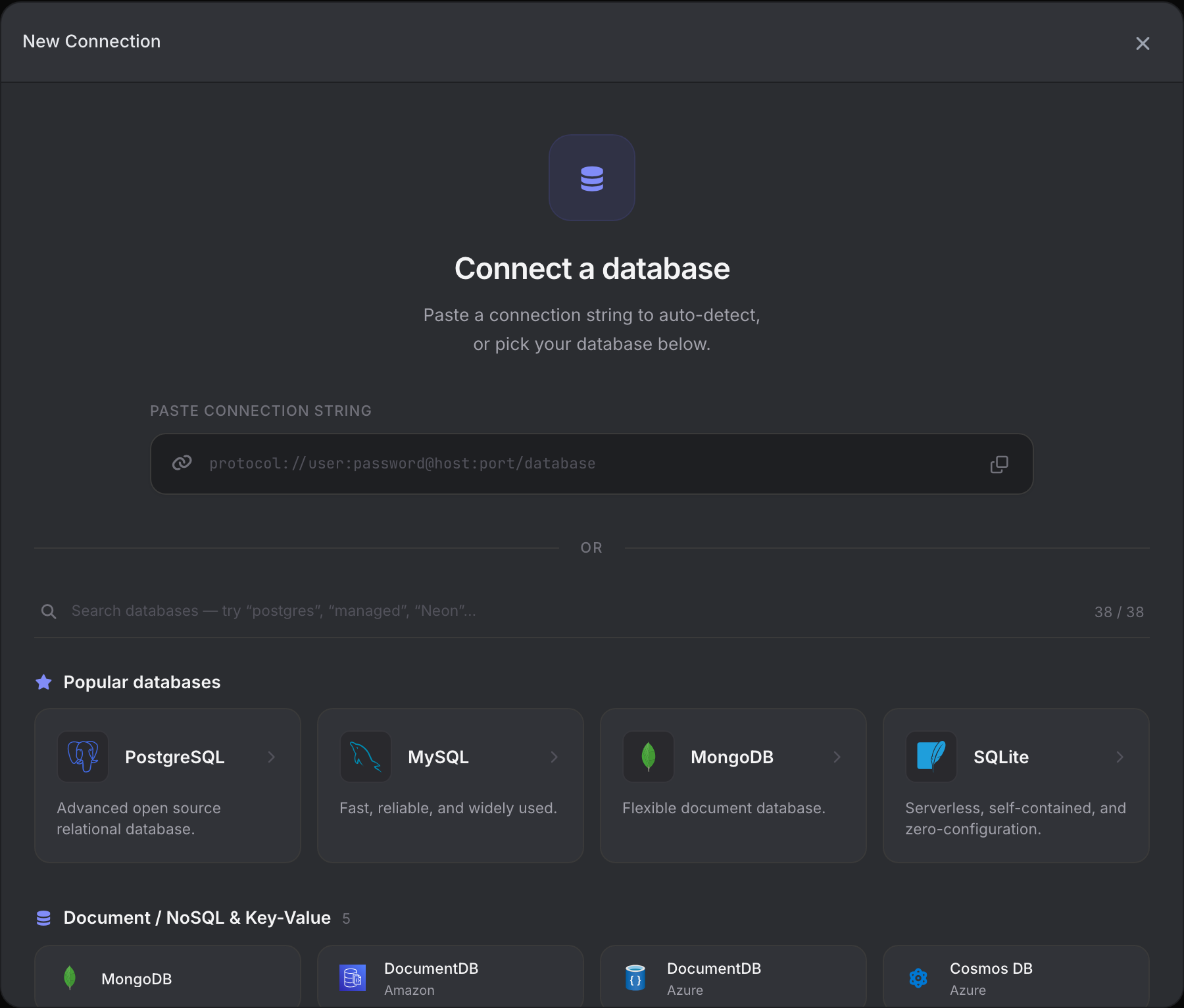
Open VisuaLeaf and click New Connection on the welcome screen.
-
Type
duckdbin the search box and select DuckDB.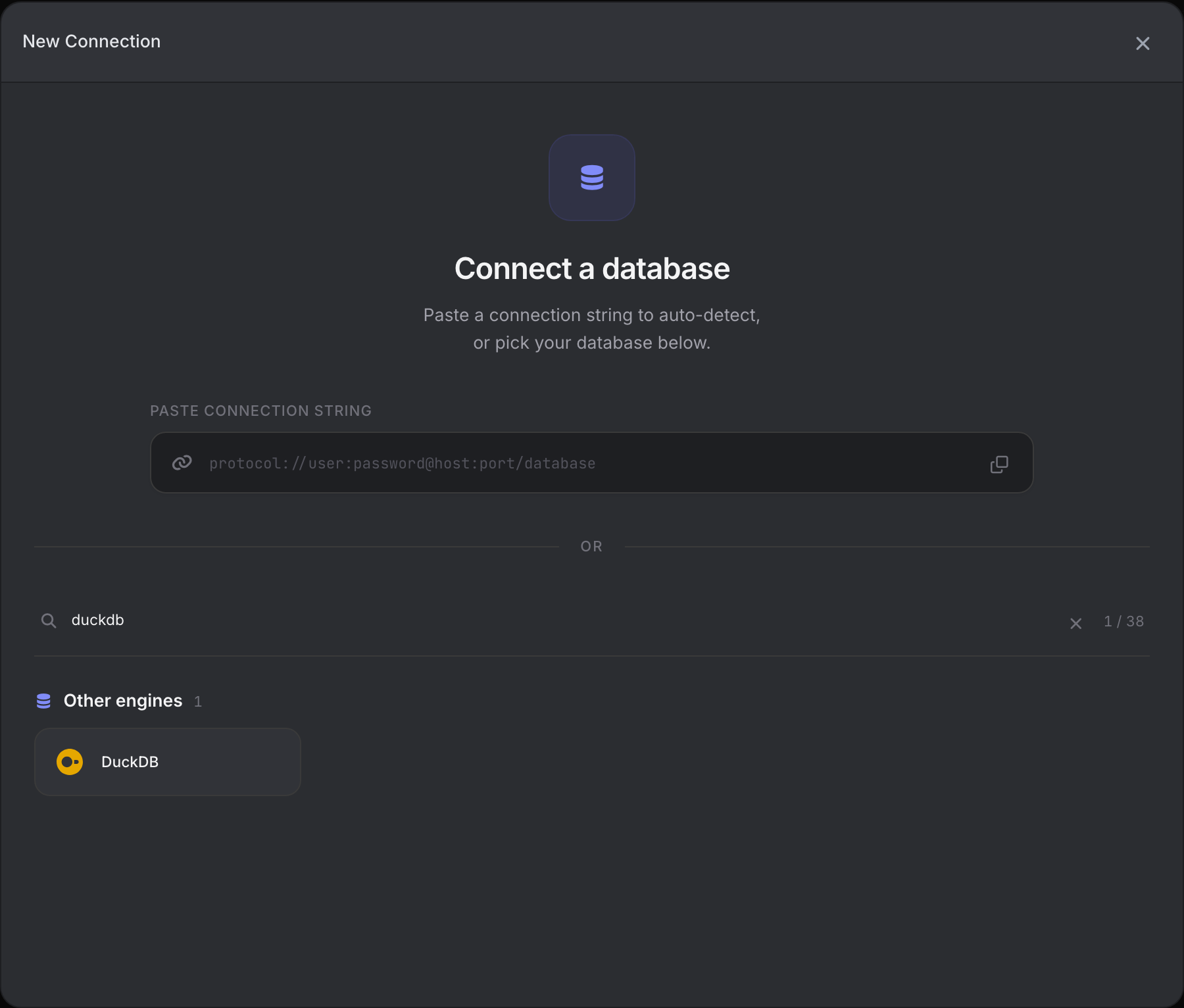
-
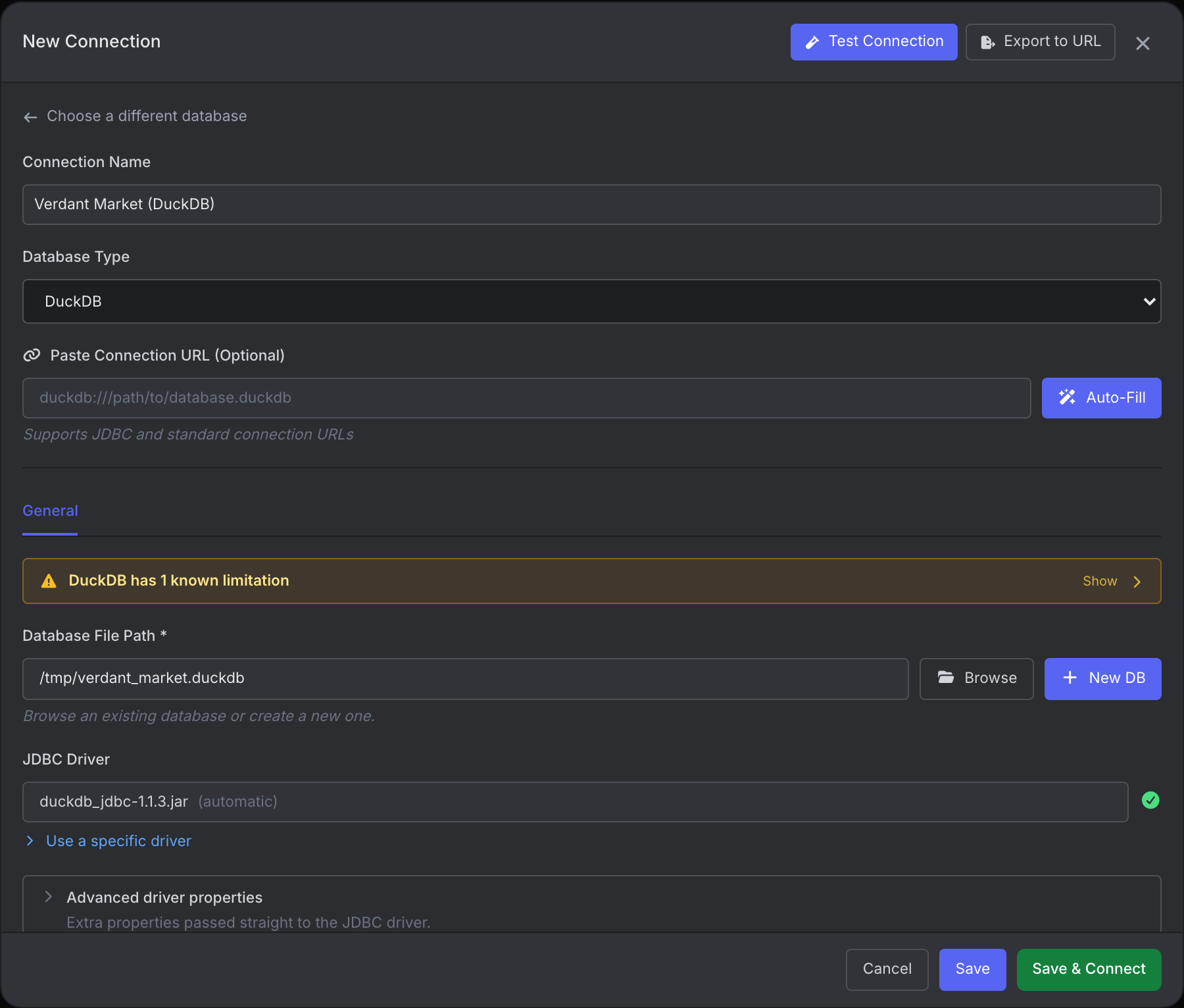
Give the connection a name and enter the path to your DuckDB database file in Database File Path, or click Browse to pick it. To create a new database file instead, click New DB.
-
Click Test Connection to confirm the file can be opened, then click Save & Connect.
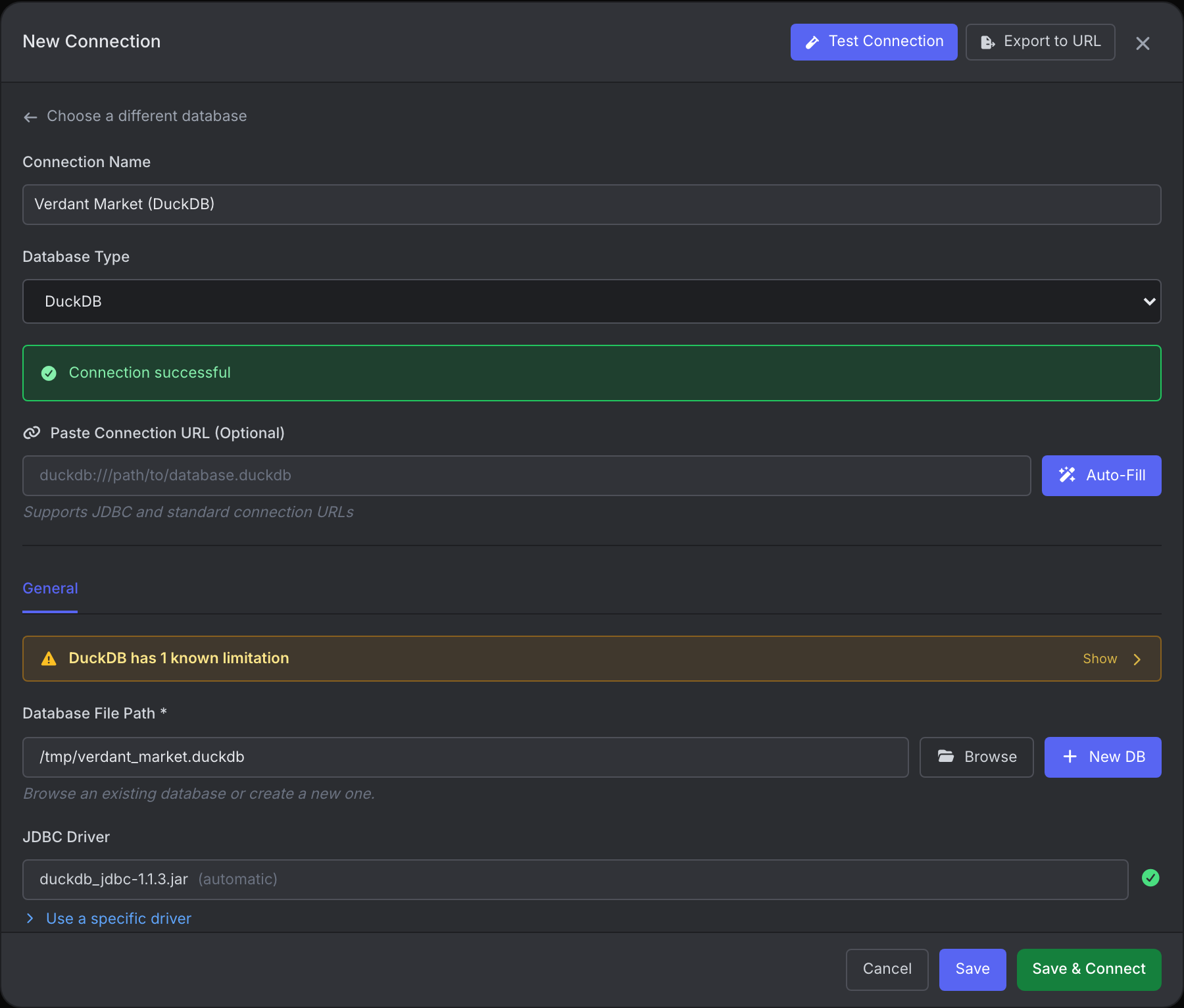
DuckDB allows only one process to open a database file for writing at a time. If another process (for example, the DuckDB CLI) has the file open, close it before connecting.
-
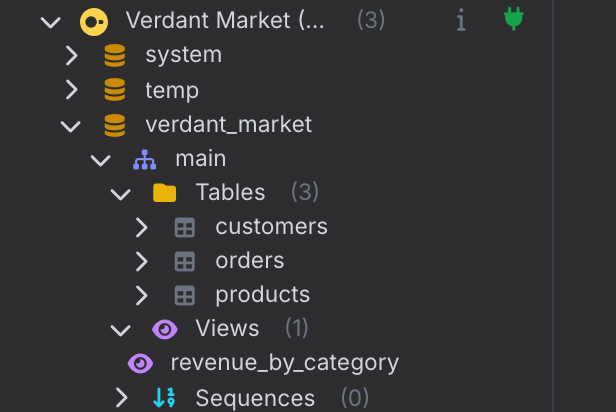
The connection appears in the Connections panel. Expand it to browse the schemas, tables, views, and sequences in the database.
-
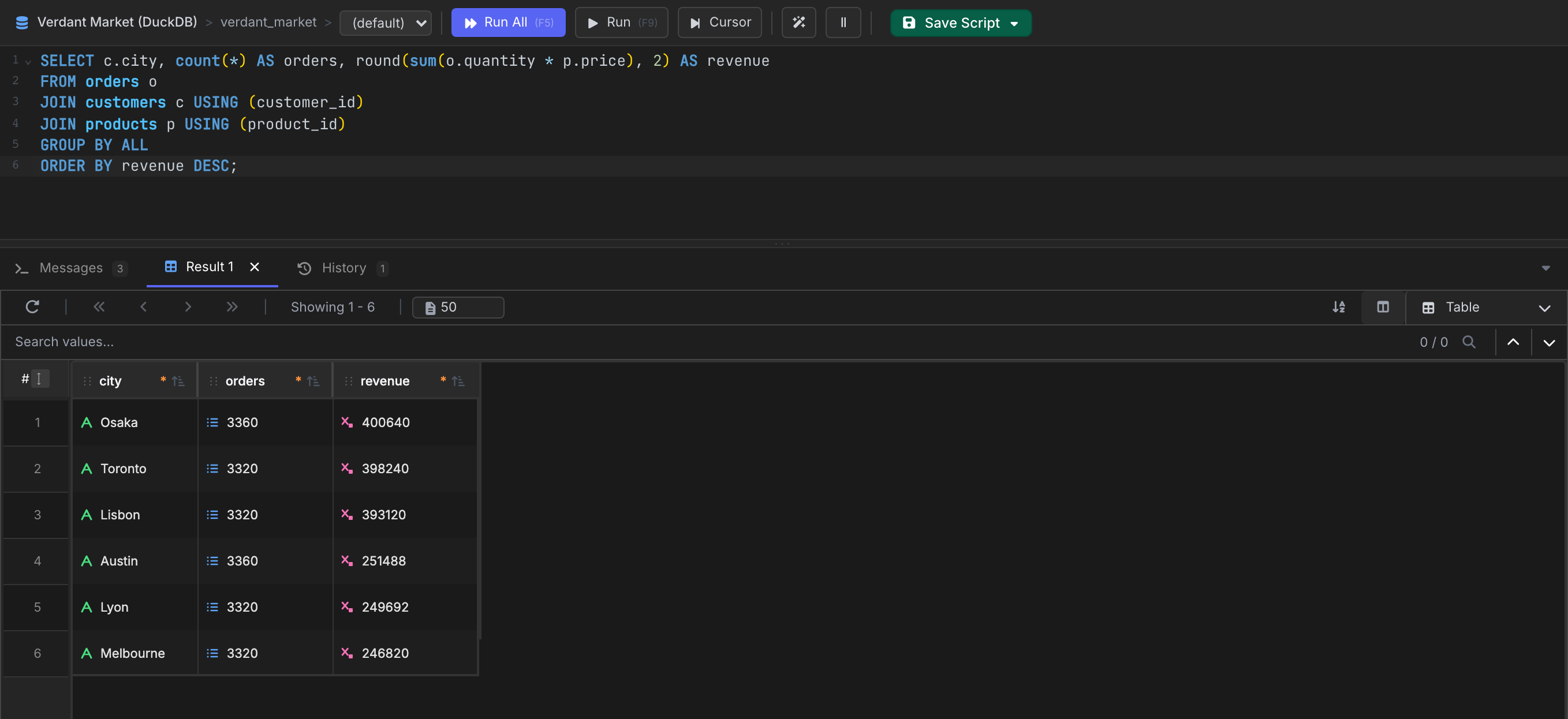
Right-click the database and choose New SQL Editor, write a query, and click Run All to see the results.
Now you are ready to query DuckDB with VisuaLeaf.