LibreDB Studio is an open-source, self-hosted, browser-based SQL editor. It runs as a single server, either via npx, Docker, or a native package, and is reached through the browser rather than installed as a desktop application. LibreDB Studio connects to DuckDB directly through its native Node.js binding, so it queries a DuckDB database file (or an in-memory database) without going through a JDBC or ODBC driver.
Installing LibreDB Studio
-
Start LibreDB Studio with
npx, which downloads and runs the latest release:bash npx @libredb/studioDocker, Homebrew, and other install options are listed in the project's README.
-
Open
http://localhost:3000in a browser. On first run, the admin password is printed to the console.
Connecting to a DuckDB Database
-
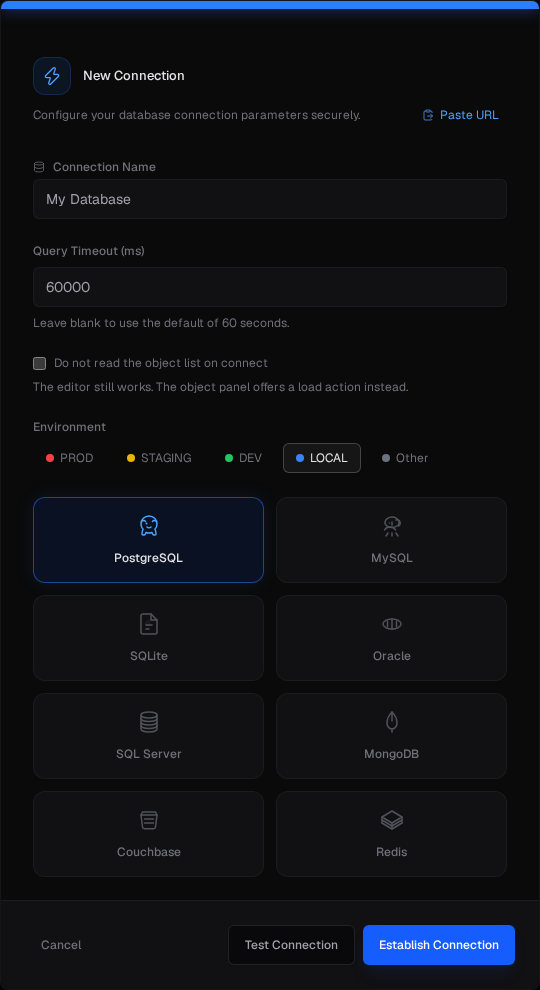
Click the + button next to the LibreDB Studio logo in the sidebar to open the New Connection dialog.
-
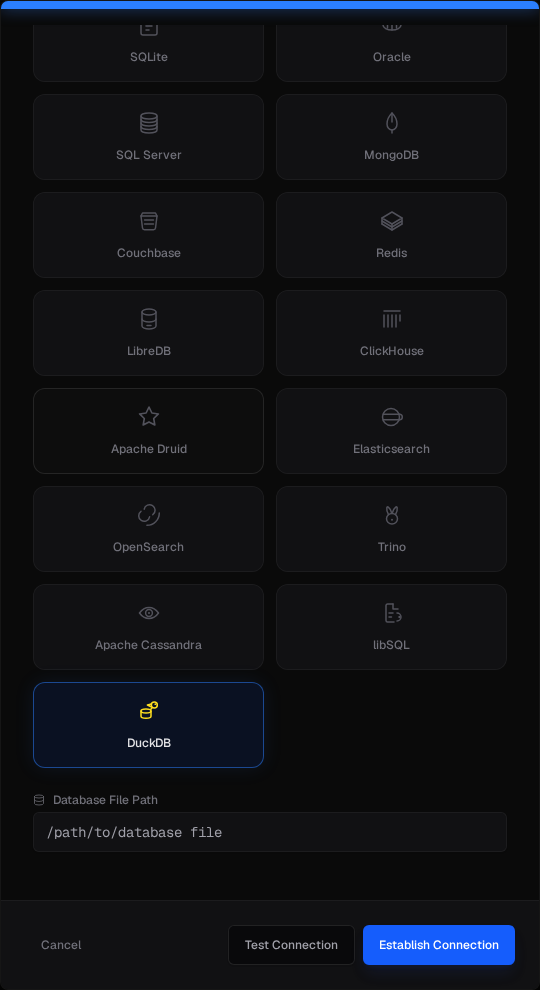
Select DuckDB from the database type grid, and give the connection a name.
-
Enter the path to the DuckDB database file in Database File Path. To use an in-memory database, enter
:memory:. Since LibreDB Studio runs as a server, the path is resolved on the machine running the server, not on the machine running the browser.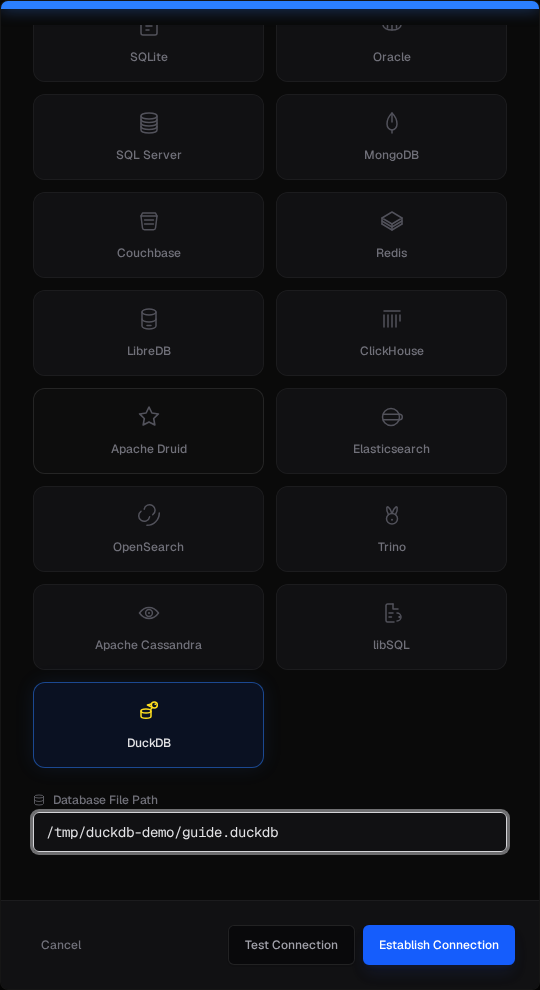
-
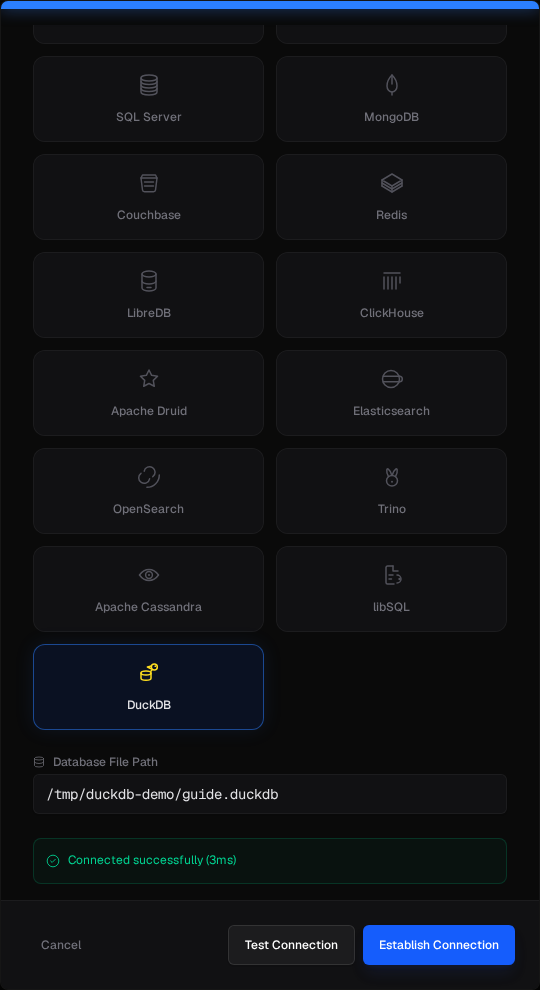
Click Test Connection to confirm the file can be opened, then click Establish Connection to save it.
-
The connection appears in the sidebar. Expand it to browse the tables, views, macros, and sequences in the database.
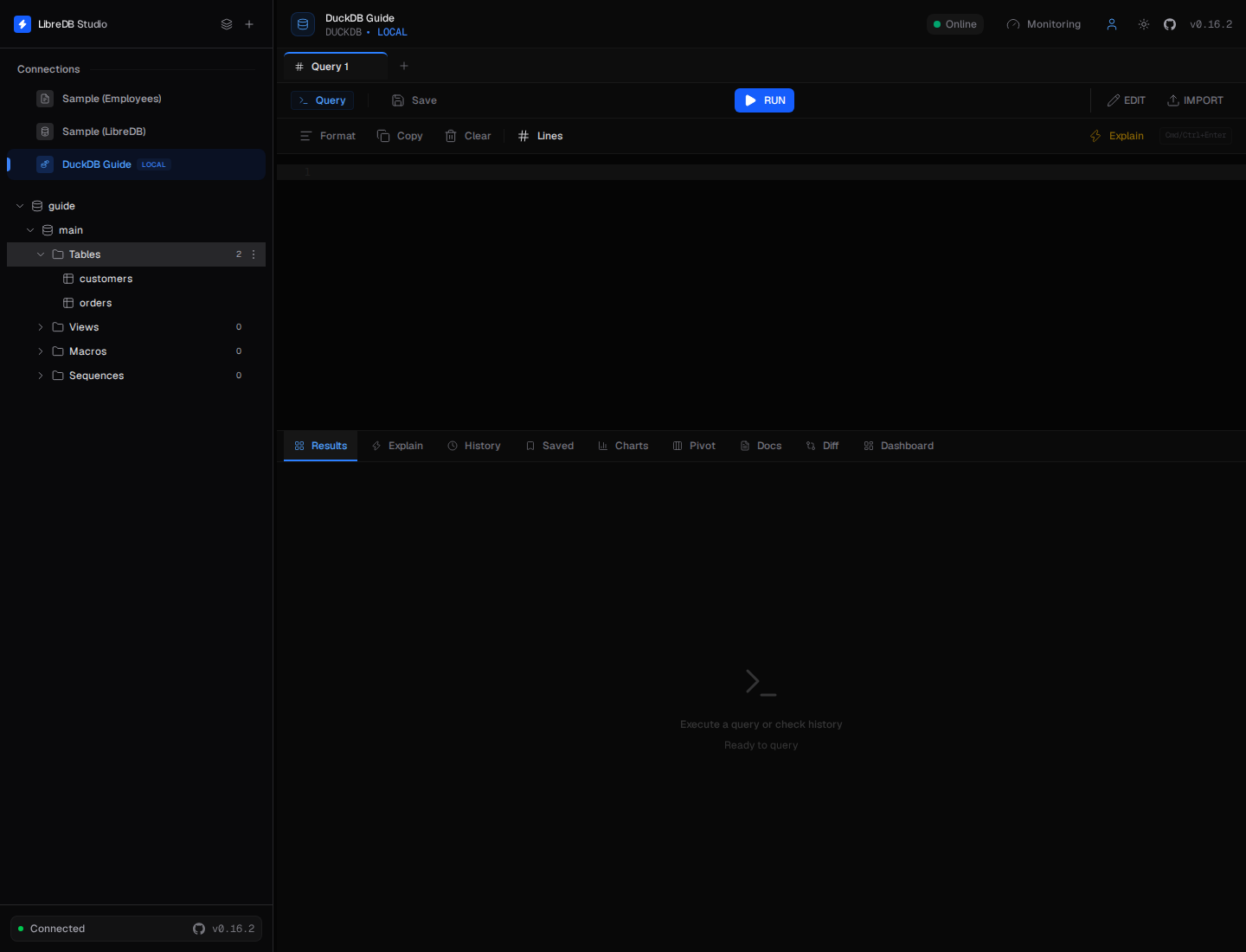
-
Open a query tab, write SQL, and run it with Run or Ctrl+Enter (Cmd+Enter on macOS).
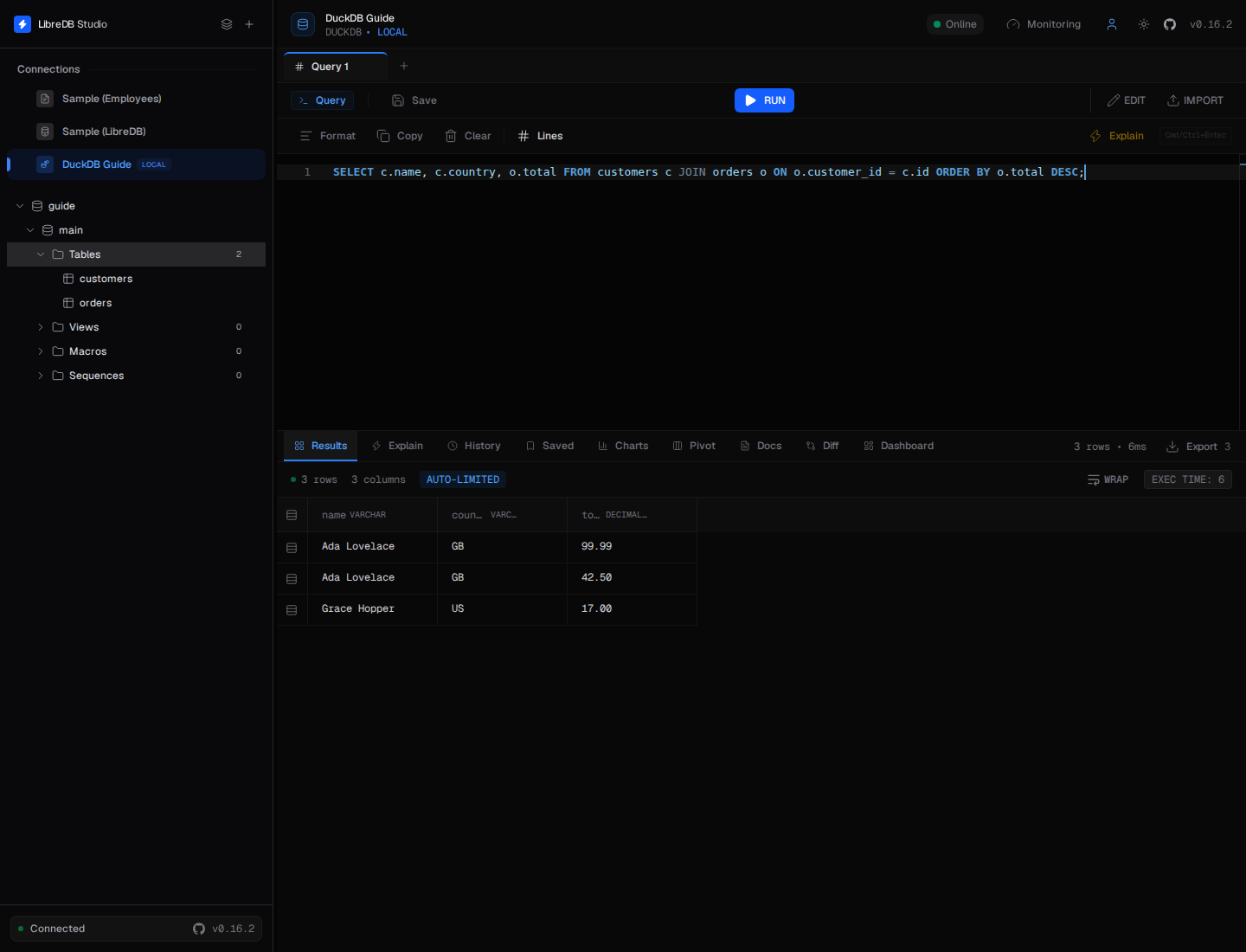
Now you are ready to query DuckDB with LibreDB Studio.